

Connect SharePoint to a running BoldDocServer deployment so users can open documents from their libraries. SharePoint keeps the files and manages permissions; BoldDocServer provides the browser editors and viewers.
Before you start
Complete Deploy BoldDocServer. Have a SharePoint administrator configure the integration on a test farm or site first.
Use your BoldDocServer hostname in place of bolddocserver.example.com. The examples use HTTPS port 443.
Required URLs
| Address | Purpose | Example |
|---|---|---|
| BoldDocServer URL | Address SharePoint and browsers use to reach the editors. | https://bolddocserver.example.com |
| Discovery URL | Lists the document types and actions available to SharePoint. | https://bolddocserver.example.com/hosting/discovery |
| SharePoint site URL | The site containing your document library. | https://sharepoint.example.com |
Set WOPI_HOST_URL to the BoldDocServer URL. SharePoint supplies the document-specific WOPISrc when opening a file; you do not need to enter it in the deployment settings.
WOPI is the protocol BoldDocServer uses to read and save files in SharePoint. See Overview for the document flow.
1. Check access from SharePoint
Run this command in PowerShell on the SharePoint server:
curl.exe -i https://bolddocserver.example.com/hosting/discoveryExpected result: The request returns discovery XML over trusted HTTPS. The editor URLs use your BoldDocServer hostname. If you use another HTTPS port, include it in the URL.
If the request fails, see Discovery troubleshooting before creating the bindings.
Configure the WOPI binding in SharePoint
Run the following commands in SharePoint Management Shell with a farm-administration account. These changes affect the SharePoint farm.
Step 1 — Inspect the current configuration
Get-SPWOPIBinding
Get-SPWOPIZone
Save the output so you can refer to the current settings. If bindings already exist for the document types you need, have the SharePoint administrator review them before adding or replacing bindings.
Step 2 — Register BoldDocServer
New-SPWOPIBinding -ServerName "bolddocserver.example.com"Use the hostname without https:// or a path. SharePoint reads the discovery document and creates the bindings. Existing bindings for the same application or document type can cause registration to fail.
Step 3 — Select the WOPI zone
The zone selects which editor URLs SharePoint uses. Choose an HTTPS zone available in the discovery document that matches your SharePoint setup. For an external-https setup, run:
Set-SPWOPIZone -Zone "external-https"For an internal-only setup, use internal-https if the discovery document provides that zone. See Microsoft’s WOPI zone reference for zone selection.
Step 4 — Check the bindings
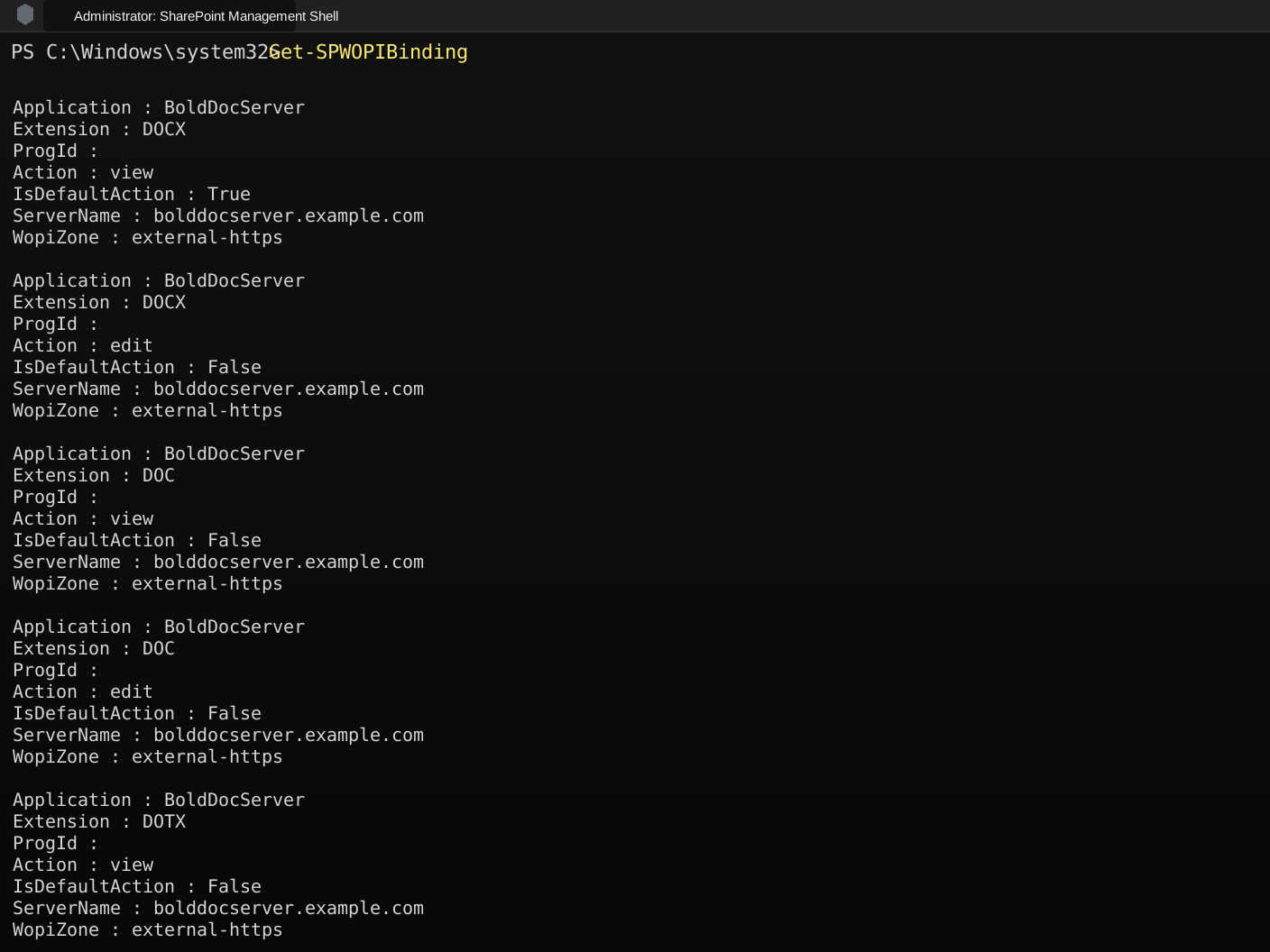
Get-SPWOPIBinding -Server "bolddocserver.example.com"
Get-SPWOPIZone
Expected result: Bindings are listed for viewing and editing supported Word, Excel, and PDF documents, and the zone matches your chosen setup. The output should resemble the following example:
Check document access, permissions, and saving
Use a test library and simple documents. Open each file from SharePoint using the library’s browser editing or viewing command.
| Check | What to do | Expected result |
|---|---|---|
| Word editing | Add a sentence to a DOCX file, save, close, and reopen it. | The sentence is still present. |
| Excel editing | Change a cell in an XLSX workbook, save, close, and reopen it. | The cell contains the saved value. |
| PDF review | Add an annotation or fill a form field, save, close, and reopen it. | The change is still present. |
| Read-only access | Open a file with a view-only account. | The file is readable and editing is restricted. |
| Denied access | Try to open the file with an account that has no access. | Access is denied. |
| Collaboration | Open the same file with two accounts that have edit permission, then edit it. | Changes appear in both sessions and remain after saving and reopening. |
Wait for a save to complete before closing the editor. SharePoint Version History follows the library’s versioning settings; it is separate from checking the saved document content.
See Quick Start step 7 for a first Word document walkthrough.
Proof-signature errors
BoldDocServer generates WOPI proof keys at runtime. If the container is recreated without persistent key storage, the keys may change, causing a mismatch with the public key stored in SharePoint.
After recreating the container without preserving the existing keys, or if SharePoint logs report an invalid proof signature, ask a SharePoint administrator to run the following command in SharePoint Management Shell:
Update-SPWOPIProofKey -ServerName "bolddocserver.example.com"Then reopen the document. This is a troubleshooting action, not a routine step for every deployment. See Microsoft’s proof-key refresh reference.
Troubleshoot integration failures
Identify where the workflow stops: opening the editor, loading the document, editing, or saving. Record the error message and time, then use the matching Troubleshooting section.
For permission settings, see Security and Permissions.