

Overview
BoldDocServer lets users view and edit documents from SharePoint Server in a browser. It connects the Syncfusion editors and viewers to SharePoint through the Web Application Open Platform Interface (WOPI).
For example, a user opens a Word document in a SharePoint library, edits it in the browser, and saves the changes back to the same library. SharePoint continues to store the document and control who can access it.
Supported documents
Section titled “Supported documents”| Format | Browser experience |
|---|---|
| DOCX | View and edit Word documents with Syncfusion DOCX Editor. |
| XLSX | View and edit workbooks with Syncfusion Spreadsheet Editor. |
| View, annotate, and fill PDFs with Syncfusion PDF Viewer. |
When collaboration is enabled, multiple users can edit the same document together. Word spell check identifies spelling errors and suggests corrections. Administrators configure Redis for collaboration and provide dictionary files for spell check. See Features and document support for details.
Your document stays in SharePoint. As you edit it in the browser, auto-save sends your changes back to SharePoint at the configured interval. SharePoint’s library settings determine whether those saved changes also create an entry in Version History.
Architecture
Section titled “Architecture”The browser displays the editor, BoldDocServer handles document requests, and SharePoint stores the files and manages permissions.
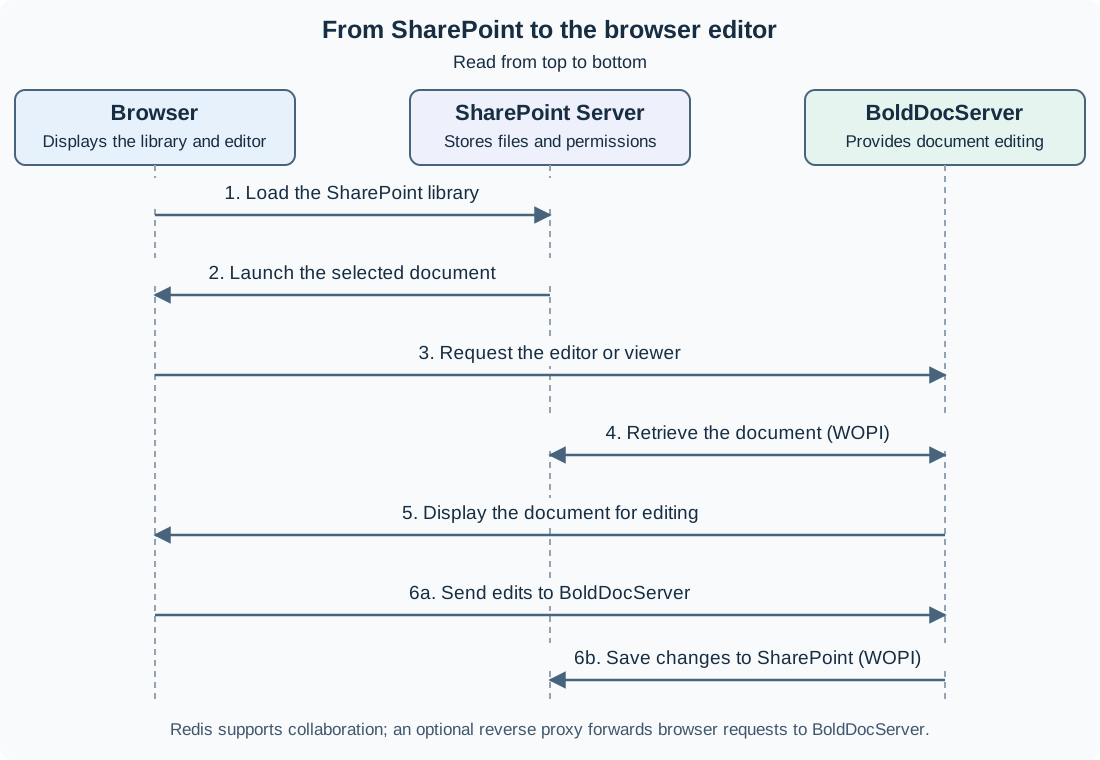
Read the diagram from top to bottom. The SharePoint page loads first; the BoldDocServer editor loads after the user opens a document. Redis supports collaboration alongside this flow. A reverse proxy can sit between the browser and BoldDocServer, as described in Deployment options.
| Component | Responsibility |
|---|---|
| SharePoint Server | Stores documents, manages permissions, and provides the WOPI document endpoints. |
| BoldDocServer | Serves the editors and viewers to the browser and communicates with SharePoint to read and save documents. |
| Browser | Runs the editor or viewer and displays the document to the user. |
| Redis | Supports the configured collaboration services. |
The document workflow is:
- Load SharePoint: The browser opens the SharePoint site and document library.
- Open a document: The user selects a file. SharePoint gives the browser the information needed to launch its BoldDocServer editor or viewer.
- Load the editor: The browser requests the editor or viewer from BoldDocServer.
- Retrieve the document: BoldDocServer reads the document from SharePoint through WOPI.
- Display and edit: The editor displays the document in the browser. The user can view or edit it according to their SharePoint permissions.
- Save changes: The browser sends edits to BoldDocServer, which saves them back to SharePoint through WOPI.
Loading the editor interface and loading the document content are different parts of opening a file. Saving occurs after the user makes changes.
See Connect SharePoint to configure document opening and editing from a SharePoint library.
Deployment options
Section titled “Deployment options”BoldDocServer runs in a Linux container. You can provide secure HTTPS access in either of these ways:
| Option | How it works |
|---|---|
| Direct HTTPS | Users connect directly to BoldDocServer. The server uses its configured certificate to secure the connection. |
| Reverse proxy | Users connect to NGINX or IIS over HTTPS. The proxy forwards their requests to BoldDocServer on your internal network. |
With a reverse proxy, users access the proxy’s address; the BoldDocServer application port is accessible only to the proxy and other authorized internal systems.
See Deploy BoldDocServer for certificate, port, and proxy configuration steps.
Platform compatibility
Section titled “Platform compatibility”BoldDocServer integrates with SharePoint Server 2016, SharePoint Server 2019, and SharePoint Server Subscription Edition. Use a host capable of running Linux containers, with Docker Engine and the Docker Compose plugin. Windows Server can host the workload in a Linux VM.
See Deployment Prerequisites for host, hardware, network, and certificate requirements.
Get started
Section titled “Get started”Follow Quick Start to deploy one direct-HTTPS evaluation setup and open, edit, save, and reopen a Word document in SharePoint.
For an existing environment or a different deployment topology:
- Review Deployment Prerequisites for infrastructure readiness.
- Follow Deploy BoldDocServer for HTTPS and reverse-proxy setup.
- Connect SharePoint and verify document access and saving.
Configure and maintain
Section titled “Configure and maintain”- Configuration reference: environment variables and application settings.
- Features and document support: document formats, collaboration, spell check, and save behavior.
- Security and Permissions: responsibilities and access controls.
- Troubleshooting: diagnose failures by symptom.
- Release notes: product changes and new features by version.